How to Make a ChatGPT Image Seamless for Repeating Patterns
Use Seamlessify to inspect a ChatGPT-generated image, blend visible seams, and export a repeat tile for fabric, wallpaper, or backgrounds without signup.
To make a ChatGPT-generated image repeat more smoothly, download it, open Seamlessify's free pattern workspace, and inspect it in a repeated layout. If the joins are visible, select Seamless blend and adjust the blend area. Set both rows and columns to 1 to export one repeat tile, then check that exported tile in a 3 × 3 arrangement.
Seamlessify's browser-based stitching, blending, and export tools require no account or AI credits. Creating new artwork with Seamlessify's optional AI generator is a separate credit-based feature. This is a guide by Seamlessify, an independent tool, not an OpenAI product or endorsement.
Why a good-looking image can still have seams
An illustration can look balanced on its own while its left edge fails to match its right edge. The same can happen at the top and bottom. A prompt asking for a seamless pattern is a starting point; inspect the actual downloaded image before using it as a repeating surface.
Look for abrupt color changes, clipped motifs, white lines, and visible crosses where four copies meet. Repeating an image does not itself repair these problems.
1. Download and inspect your image
Save the image as PNG, JPG, or WEBP. Open Direct stitching and select the file. Local stitching processes the image in your browser. The optional AI reference-image workflow is different and involves external services.
Start with three columns and three rows to see the unmodified repeat. Zoom in to inspect joins, then zoom out to judge whether the pattern feels too dense or has an obvious grid.
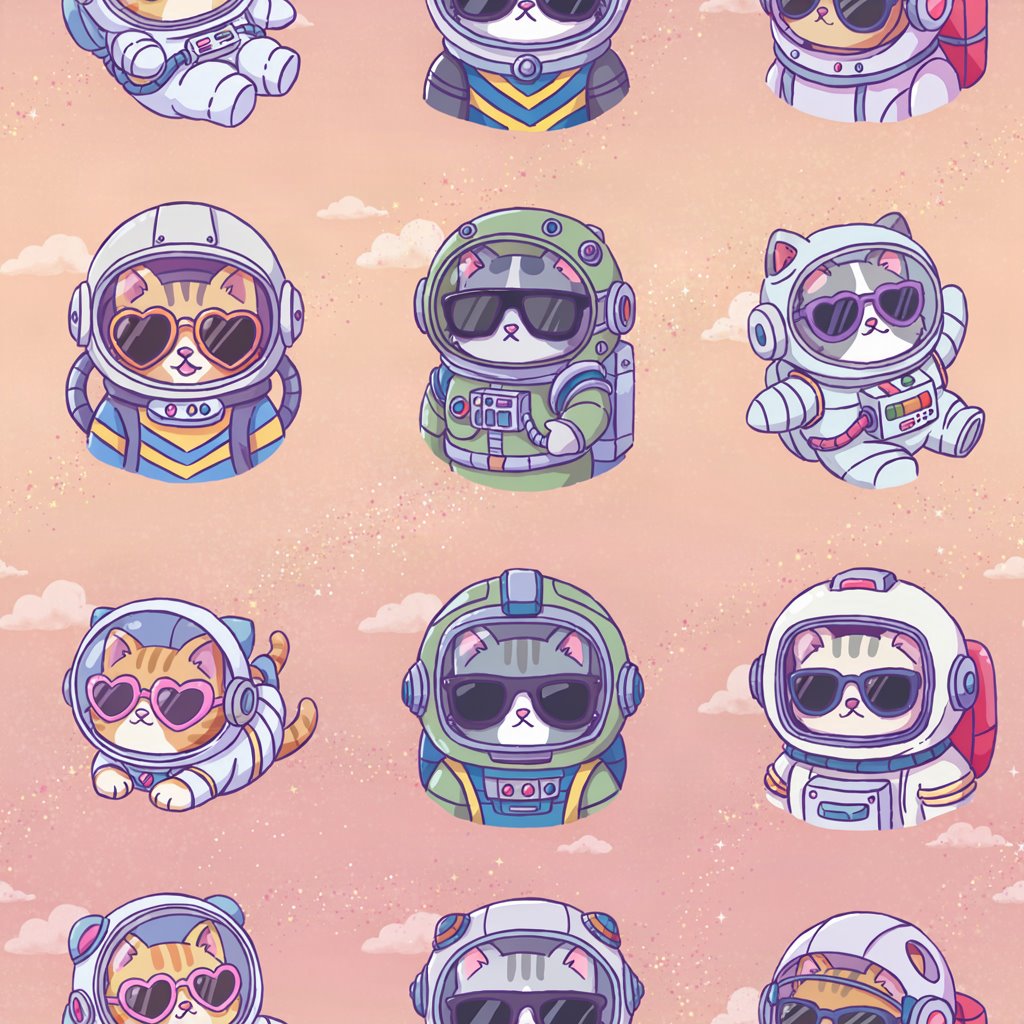
This is the site's existing sample artwork, not a documented ChatGPT output or a before-and-after claim. You can use your own image to follow the steps below.
2. Blend only when the edges need it
If the image already tiles cleanly, keep Direct stitching to preserve its pixels. Otherwise, choose Seamless blend and start with the default 10 px blend area. Increase it gradually for a softer transition, or reduce it if edge details become blurred or doubled.
Blending works best when nearby colors and shapes can merge naturally. A face cut in half, lettering, or a precise geometric grid may need manual editing or a new source image. More blending is not always better.
3. Export the right layout
| Your goal | Settings |
|---|---|
| One tile to repeat in another design application | 1 column, 1 row; inspect seams using the separate 3 × 3 preview |
| A horizontal strip | Several columns, 1 row |
| A vertical strip | 1 column, several rows |
| A larger repeated sheet | Several columns and rows |
Each row and column control ranges from 1 to 10. The combination must also fit the browser's export limits, so large source images may require fewer repeats. The seam-inspection view does not change the exported layout.
Leave fixed-size cropping off when you need a reusable seamless tile: cutting an arbitrary rectangle from the result can break the edge match. Blending also reduces the tile dimensions because opposite edge regions overlap.
Choose PNG for transparency or lossless output; choose JPG for a smaller opaque image. Export uses the original source for rendering, even when the on-screen preview is reduced for responsiveness. It does not add detail that was absent from the source.
Can I batch-process images for free?
Yes. Seamlessify accepts up to 100 images with a combined upload limit of 500 MB in the browser workspace. Apply a shared layout and download the results as a ZIP. Every image must fit the export size limits; a safe setting for a small image may be too large for another image in the batch. Inspect individual results because one blend setting will not suit every composition.
Can I use the result for fabric or print-on-demand?
You can prepare files for those workflows, but processing an image does not grant rights to its content. Check the source image's permissions, applicable generation terms, and any third-party rights. Test the exported tile at the intended print size and check the printer's resolution requirements before production.
For more detail, read the pattern maker guide, the tileable texture tutorial, or the Midjourney workflow. To create new artwork instead of processing an existing image, see AI credit plans.